
🌐 Make websites accessible for AI agents. Automate tasks online with ease.
Copy the command below to clone the repository to your machine.



🌤️ Want to skip the setup? Use our cloud for faster, scalable, stealth-enabled browser automation!
Browser Use 0.13 introduces a new beta agent powered by a Rust core and a browser harness built for current frontier models. It gives the model a real browser/computer action space, persistent tools, and recovery loops inspired by coding agents.
Python API -> Rust core -> Browser harness -> Web task done
1. Install Browser Use with the native core runtime (Python>=3.11):
uv add "browser-use[core]"
# or: pip install "browser-use[core]"
browser
The [core] extra installs the native Browser Use runtime for your platform.
2. [Optional] Get your API key from Browser Use Cloud:
# .env
BROWSER_USE_API_KEY=your-key
# GOOGLE_API_KEY=your-key
# ANTHROPIC_API_KEY=your-key
3. Run your first agent:
Browser Use Terminal:
uv add "browser-use[core]"
browser
Python Script:
from browser_use.beta import Agent, BrowserProfile, ChatBrowserUse
# from browser_use.beta import ChatOpenAI  # ChatOpenAI(model='gpt-5.5')
# from browser_use.beta import ChatAnthropic  # ChatAnthropic(model='claude-opus-4-8')
import asyncio

async def main():
    agent = Agent(
        task="Find the number of stars of the browser-use repo",
        llm=ChatBrowserUse(model='openai/gpt-5.5'),
        # llm=ChatBrowserUse(model='bu-2-0'),  # Browser Use's own optimized model
        # llm=ChatOpenAI(model='gpt-5.5'),
        # llm=ChatAnthropic(model='claude-opus-4-8'),  # Sonnet also works well.
        browser_profile=BrowserProfile(
            headless=False,
            allowed_domains=["*.github.com"],
        ),
    )
    history = await agent.run()
    print(history.final_result())

if __name__ == "__main__":
    asyncio.run(main())
Existing Python agent users can keep using from browser_use import Agent. The new Rust-powered beta agent is from browser_use.beta import Agent.
Check out the library docs and the cloud docs for more!
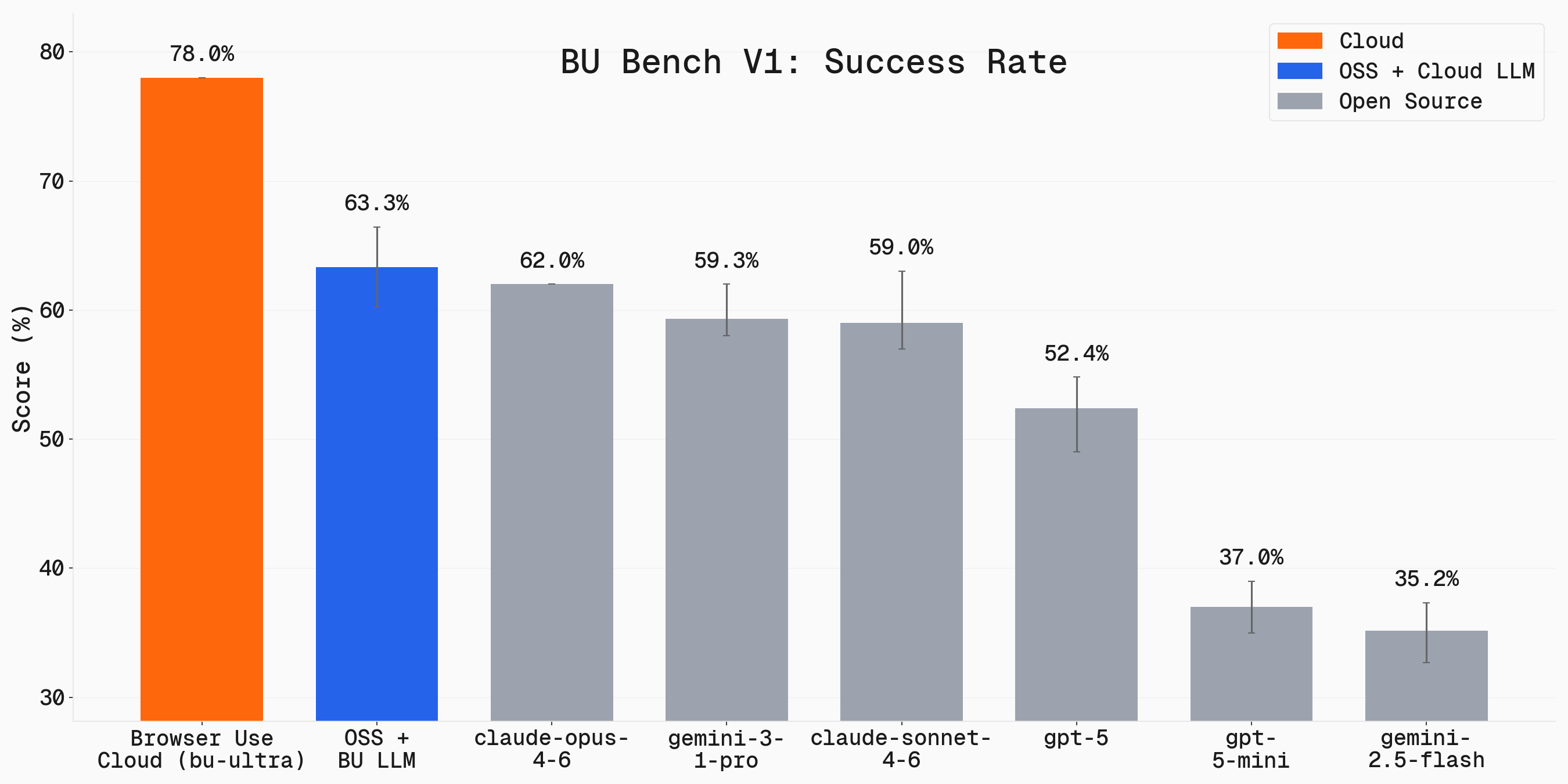
We benchmark Browser Use across 100 real-world browser tasks. Full benchmark is open source: browser-use/benchmark.
Use the Open-Source Agent
Use the Fully-Hosted Cloud Agent (recommended)
https://github.com/user-attachments/assets/a6813fa7-4a7c-40a6-b4aa-382bf88b1850
https://github.com/user-attachments/assets/ac34f75c-057a-43ef-ad06-5b2c9d42bf06
Want to get started even faster? Generate a ready-to-run template:
uvx browser-use init --template default
This creates a browser_use_default.py file with a working example. Available templates:
default - Minimal setup to get started quicklyadvanced - All configuration options with detailed commentstools - Examples of custom tools and extending the agentYou can also specify a custom output path:
uvx browser-use init --template default --output my_agent.py
Fast, persistent browser automation from the command line:
browser-use open https://example.com    # Navigate to URL
browser-use state                       # See clickable elements
browser-use click 5                     # Click element by index
browser-use type "Hello"                # Type text
browser-use screenshot page.png         # Take screenshot
browser-use close                       # Close browser
The CLI keeps the browser running between commands for fast iteration. See CLI docs for all commands.
For Claude Code, install the skill to enable AI-assisted browser automation:
mkdir -p ~/.claude/skills/browser-use
curl -o ~/.claude/skills/browser-use/SKILL.md \
  https://raw.githubusercontent.com/browser-use/browser-use/main/skills/browser-use/SKILL.md
We optimized ChatBrowserUse() specifically for browser automation tasks. On avg it completes tasks 3-5x faster than other models with SOTA accuracy.
For pricing and other LLM providers, see our supported models documentation.
Can I use Claude / GPT / Gemini through ChatBrowserUse?Yes. ChatBrowserUse accepts provider-prefixed model ids, so a single BROWSER_USE_API_KEY reaches all of them — no separate OpenAI/Anthropic/Google keys required:
from browser_use import Agent, ChatBrowserUse

llm = ChatBrowserUse(model='anthropic/claude-sonnet-4-6')  # or 'openai/gpt-5.5', 'google/gemini-3-pro'
agent = Agent(task='...', llm=llm)
For the best speed and cost we still recommend the default bu-* models.
Yes. If you use ChatBrowserUse(model='browser-use/bu-30b-a3b-preview') with a normal Agent(...), Browser Use still sends its default agent system prompt for you.
You do not need to add a separate custom "Browser Use system message" just because you switched to the open-source preview model. Only use extend_system_message or override_system_message when you intentionally want to customize the default behavior for your task.
If you want the best default speed/accuracy, we still recommend the newer hosted bu-* models. If you want the open-source preview model, the setup stays the same apart from the model= value.
Yes! You can add custom tools to extend the agent's capabilities:
from browser_use import Tools

tools = Tools()

@tools.action(description='Description of what this tool does.')
def custom_tool(param: str) -> str:
    return f"Result: {param}"

agent = Agent(
    task="Your task",
    llm=llm,
    browser=browser,
    tools=tools,
)
Yes! Browser-Use is open source and free to use. You only need to choose an LLM provider (like OpenAI, Google, ChatBrowserUse, or run local models with Ollama).
Terms of ServiceThis open-source library is licensed under the MIT License. For Browser Use services & data policy, see our Terms of Service and Privacy Policy.
How do I handle authentication?Check out our authentication examples:
curl -fsSL https://browser-use.com/profile.sh | BROWSER_USE_API_KEY=XXXX sh (replace XXXX with your API key)These examples show how to maintain sessions and handle authentication seamlessly.
How do I solve CAPTCHAs?For CAPTCHA handling, you need better browser fingerprinting and proxies. Use Browser Use Cloud which provides stealth browsers designed to avoid detection and CAPTCHA challenges.
How do I go into production?Chrome can consume a lot of memory, and running many agents in parallel can be tricky to manage.
For production use cases, use our Browser Use Cloud API which handles:
Tell your computer what to do, and it gets it done.



